
Web Clipper
Save webpages as local Markdown independently, with optional SAG Wiki indexing.
The extension saves the current webpage's main content as a local Markdown file. It does not require a connection code, a running SAG Wiki app, Obsidian, or a model.
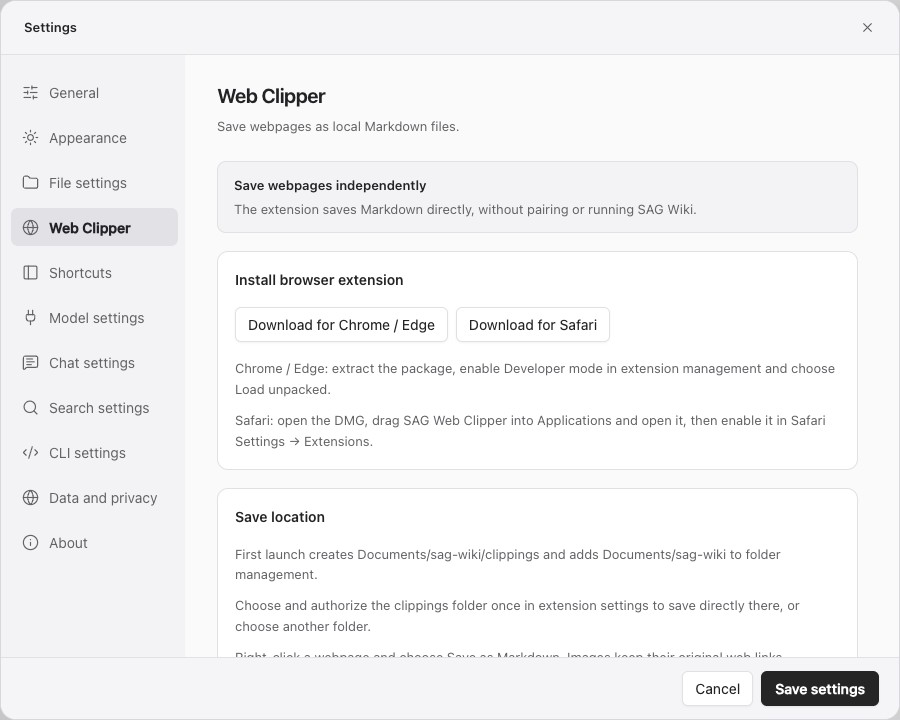
Install
- Click the globe icon for Web Clipper at the top right of SAG Wiki and download the package for your browser. You can also open it through Settings → Web Clipper. Hover over the icon to see its name.
- Install and enable the extension.
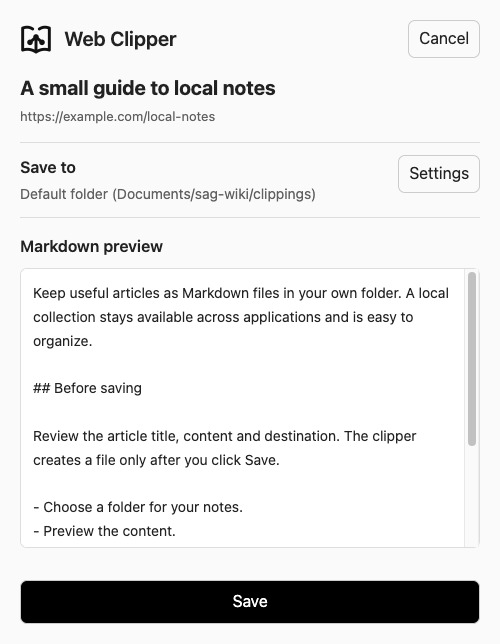
- Right-click a webpage and choose Save as Markdown to open a preview.
- Review the title, content and destination, then click Save to create the file. Cancel or closing the window does not save it.

Downloadable packages are available outside browser stores. The notarized Safari package can be installed directly; Chrome / Edge use Developer mode as described below.
- Chrome / Edge (Windows / macOS): extract the ZIP, enable Developer mode in extension management, select Load unpacked, and choose the extracted folder.
- Safari (macOS): open the notarized DMG, drag
SAG Web Clipper.apponto the Applications folder beside it, then open the copied app from Applications and enable it in Safari Settings → Extensions. The DMG provides a drag-and-drop installation window; you still complete the copy and enable the extension. The notarized package does not require Allow Unsigned Extensions. Unsigned builds made from source still require that developer setting.
The Safari app shows a language selector and Installed · enabled or Installed · not enabled. When enabled, click Done to close the window and return to a webpage. Otherwise, use Quit and open Safari settings to enable the extension. Settings remain available while checking. If Safari has not returned a result after 8 seconds, the app shows a message and Check again, rather than leaving the button locked. Returning to the app refreshes its status. If Safari has not detected the extension, the app reports that condition instead of showing Done.
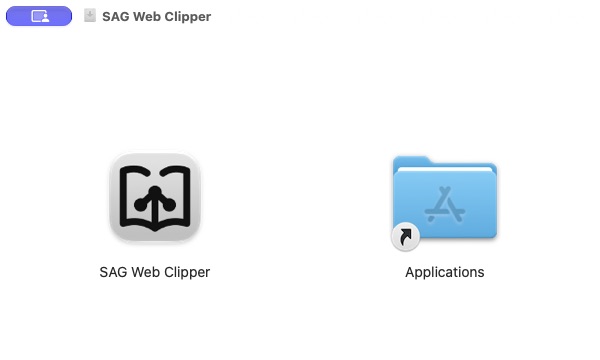
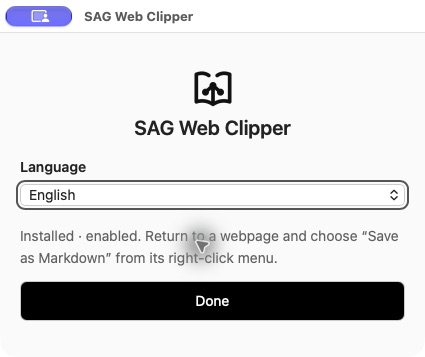
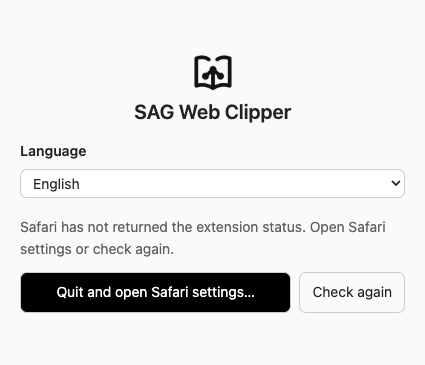
Download buttons export packages included in the current desktop build. A browser's button is unavailable if its package is absent.
Preview and save
Safari shows a small SAG icon with a transparent background beside Save as Markdown. The context menu opens a separate preview window showing the page title, source URL, Markdown and destination before writing a file. Its initial size is 520 × 660 and it opens centered over the browser window containing the source page, with longer content scrolling inside the preview. Click Save to save the previewed content. Switching or closing the original page after the preview loads does not change that content.
The toolbar clipping feature and its settings switch have been removed. Use the webpage context menu. Installation and updates do not change Safari’s address bar or toolbar layout, and the extension does not need to be pinned to the toolbar. Browsers may retain their own extension-management icon: in Safari, right-click it and choose Remove from Toolbar; in Chrome / Edge, unpin it through the extensions menu.
Save folder
On first initialization, SAG Wiki creates Documents/sag-wiki/clippings and adds Documents/sag-wiki to folder management. Existing libraries are not changed. Use Add clipping folder to add it manually when needed.
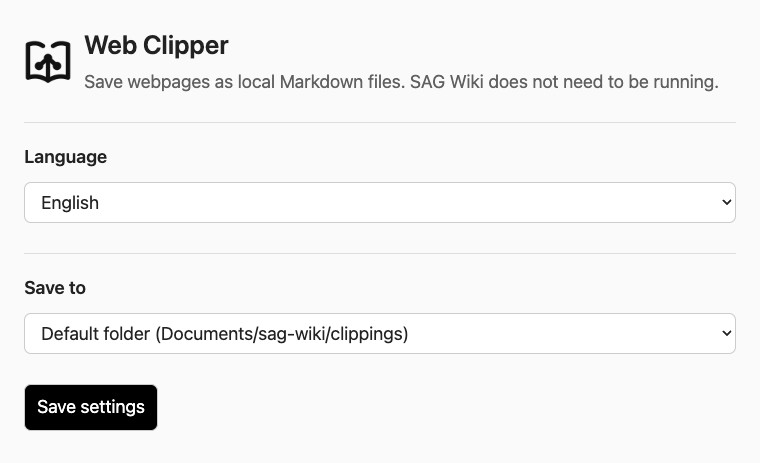
Save to initially selects Default folder (Documents/sag-wiki/clippings). Safari can save there as soon as the extension is installed and enabled; no folder selection or Save settings step is needed. The directory is created if missing. macOS may display its own Documents access prompt. The preview shows the actual full path.
Chrome / Edge use the browser folder picker: choose the system Documents folder on the first Save, then subsequent saves use sag-wiki/clippings directly. Cancelling keeps the preview open without creating a file.
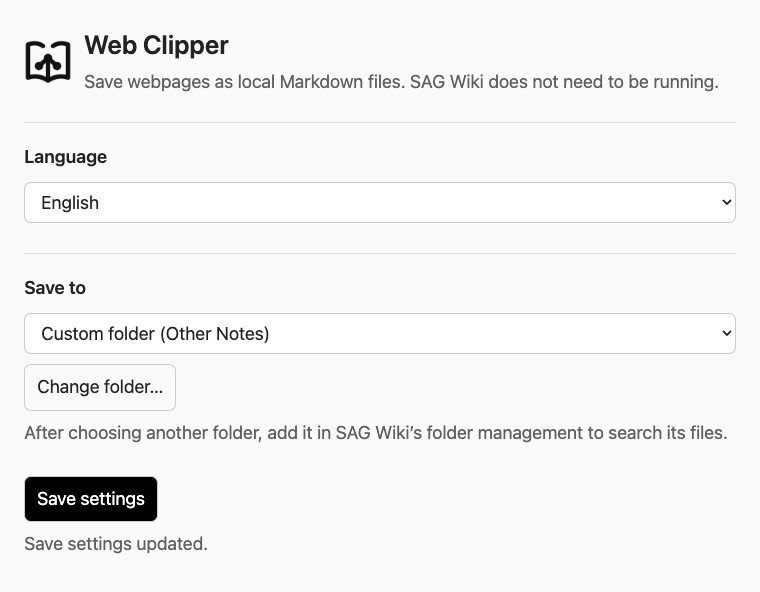
To use a different location, select Choose another folder, click Choose folder, then click Save settings. The dropdown shows Custom folder (location) directly. Default and custom folders are stored separately, and unsaved changes do not affect actual saves. The indexing reminder appears only after applying a changed destination; reopening settings or choosing the same folder does not repeat it.
Safari shows the full selected path in the dropdown. Chrome / Edge expose the selected folder's name, and the default location shows its known relative path. Use Choose folder or Change folder and click Save settings to select the location again when needed. Safari remembers the selected folder in the native component included with the extension, without connecting to SAG Wiki.
On Windows, the default sag-wiki\clippings folder is created inside the system Documents folder. Use the directory picker to authorize locations on other drives or with non-ASCII characters and spaces. The Windows desktop package includes the Chrome / Edge extension. Packaging configuration and filename rules have been checked; saving on a Windows machine has not yet been verified.
An optional Downloads folder mode remains available: Chrome / Edge use the browser's download directory and optionally a Save dialog for each file; Safari uses system Downloads. This mode defaults to the clippings subfolder and accepts other relative subfolders or an empty value.
The clipping window shows save status and the actual saved path. Chrome / Edge show a pending state until the download finishes and report interrupted downloads as errors.
Each save creates a separate .md file with its title, source URL, capture time, and content, without overwriting existing files. Images keep their original URLs and may be unavailable offline. Browser internal pages and PDF extraction are outside the current scope.
Add to knowledge base (optional)
Click Add clipping folder in SAG Wiki's Web Clipper settings and choose the actual save folder, or add it through the existing folder manager.
SAG Wiki then updates the index according to file-type, exclusion and Watch file changes settings. Add a new folder separately after changing the extension destination; older files are not moved. The extension can save while SAG Wiki is closed. Indexing updates when the background service runs and checks the folder.
Language and data
The extension interface, context menu, and common save errors support Simplified Chinese and English. It follows the browser language by default, with a language selector in extension settings. The Safari setup app also offers both languages. System file dialogs use the system language.
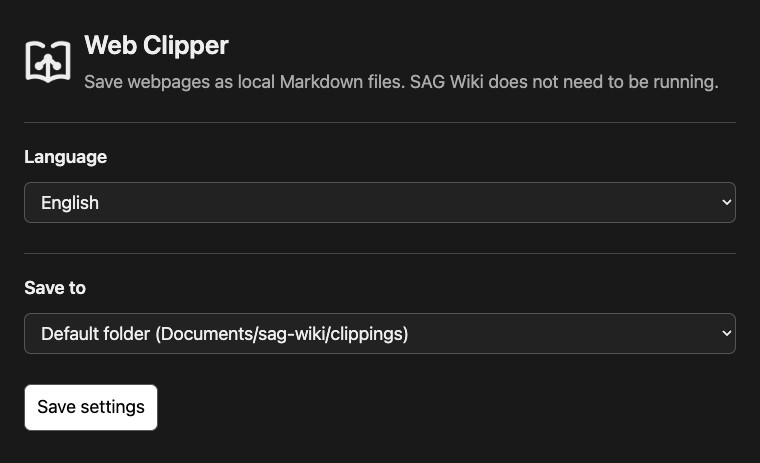
The interface uses black, white, and gray in both system light and dark modes. Settings use 18px text and buttons with a 26px heading. Context-menu, preview, settings, package, and Safari application icons all have transparent backgrounds. Icons have dedicated small-size images, and the Safari application icon has a larger symbol. Buttons, inputs, selected controls, and error messages share the same palette.
Content extraction is local. The extension does not use a local HTTP port, a connection code, or a model service. Safari's native saving component only receives requests from its own extension and limits writes to the default Documents/sag-wiki, a user-selected folder or system Downloads. Later searches and questions in SAG Wiki follow existing model settings.