
Q&A
Ask about your files and verify answers against their sources.
Start a conversation
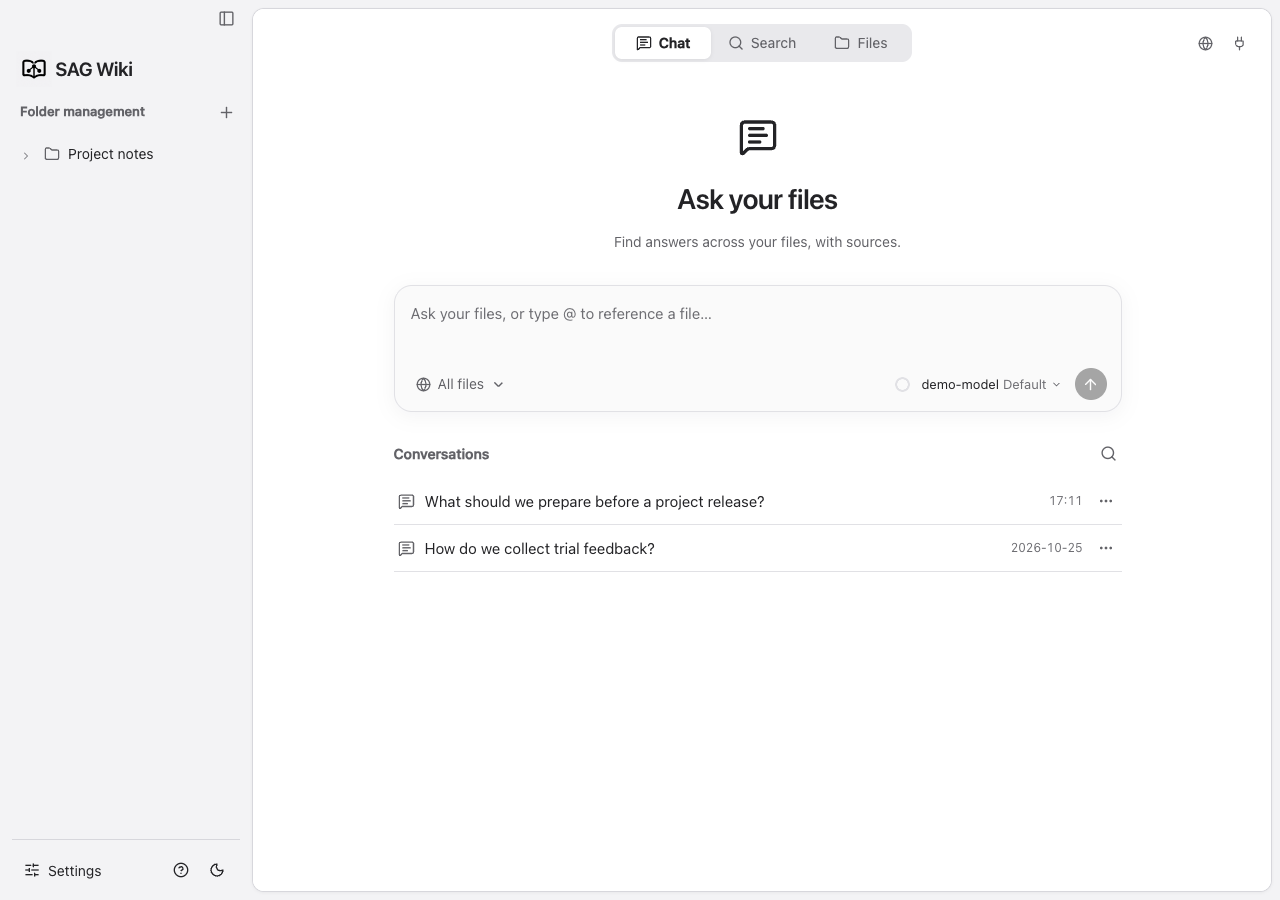
Open Q&A and send your question. Type @ to select a file. The scope selector controls which documents can be retrieved.
The sidebar directly shows folder management and the file tree, without Chats/Folders tabs. The Q&A home shows the welcome area, composer and conversation list. When the library is empty, select Add a local folder to import your files.
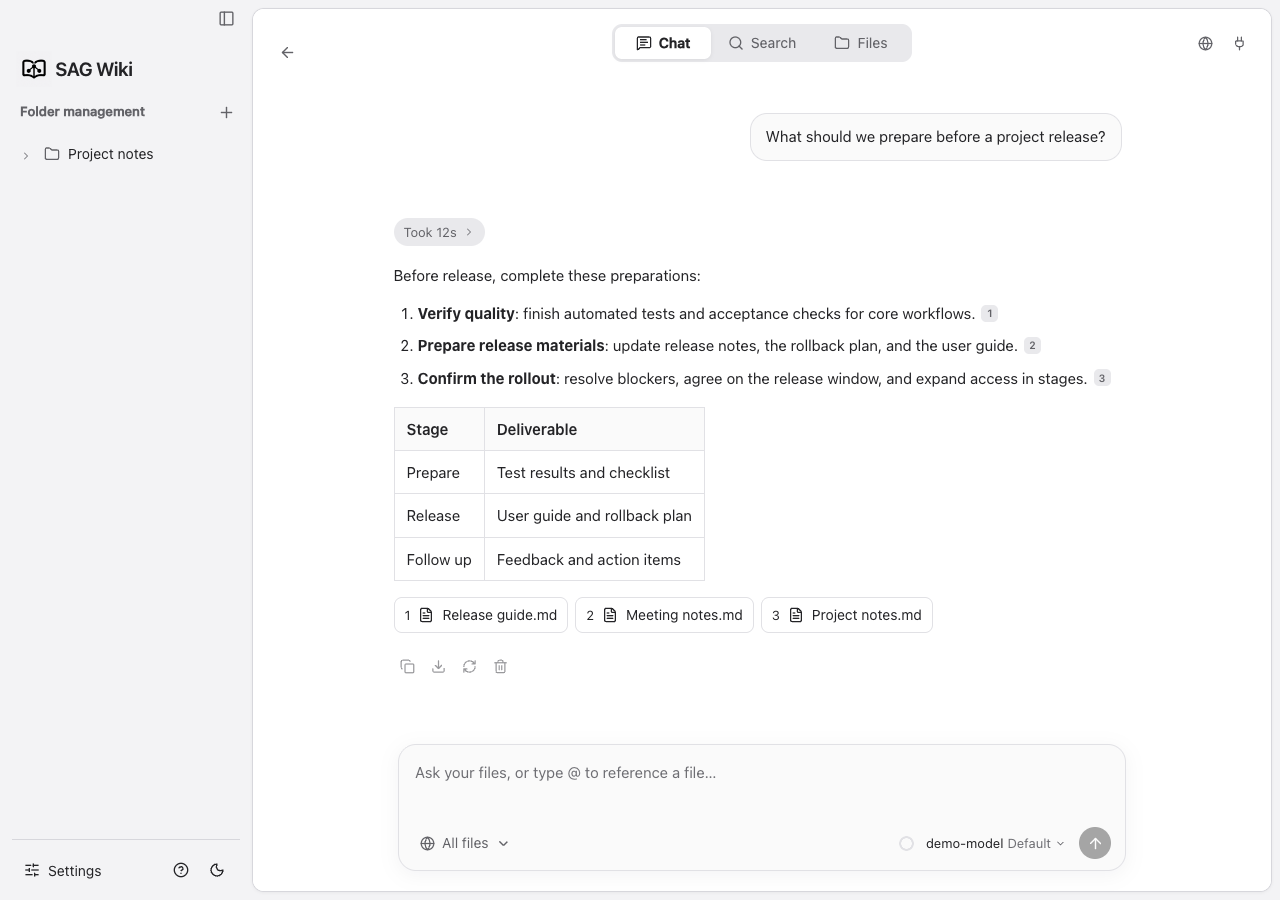
During generation, reasoning, intermediate text and tool calls appear in order. When the final answer starts, the details collapse, leaving only an elapsed-time row and a divider above the answer. Select the row to expand the details again.
If the local service connection temporarily fails, the app reports the error and keeps reconnecting. New questions continue to show streamed text and tool progress after the connection recovers.
Research steps
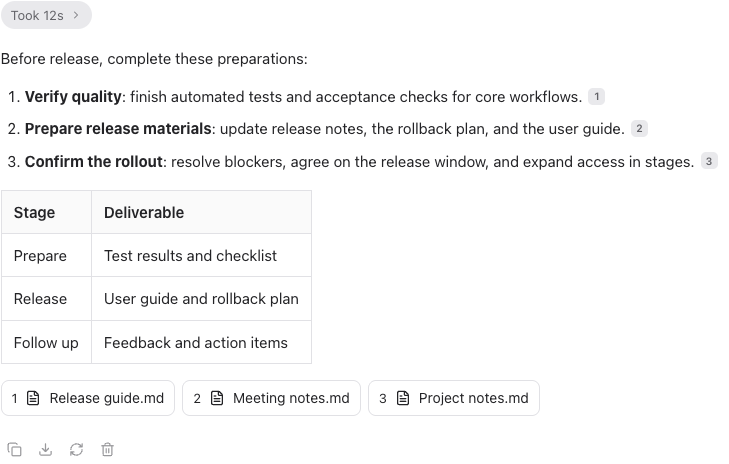
Expand the processing summary to inspect grouped searches, document reads and tool timings.

While content is being generated, the page follows the latest output. Scrolling up pauses this behavior and preserves your reading position, even for a small movement. Scrolling back to the bottom resumes following.
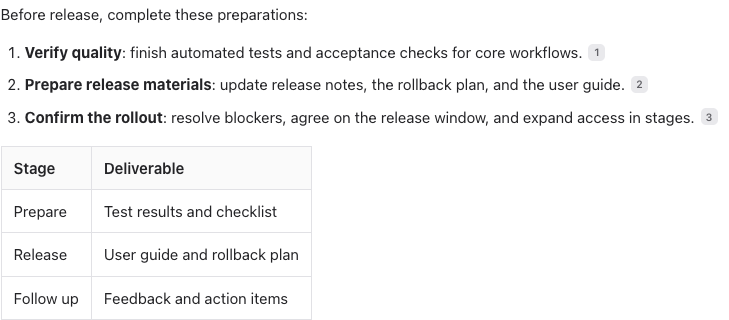
Answers display Markdown headings, tables, block quotes, ordered and unordered lists, task lists, links and code blocks. Wide tables and code blocks scroll horizontally, and citation numbers remain clickable.
Code blocks marked mermaid in answers are rendered locally as diagrams. Invalid syntax keeps the source visible and displays an error. See Mermaid diagrams for supported types and an example.
Open a citation
Click a citation number to open the full document in the side panel, automatically positioned at and highlighting the referenced passage. HTML and Markdown are supported.
The file path appears in gray below the file name. Long paths are truncated; hover over the path to see it in full.
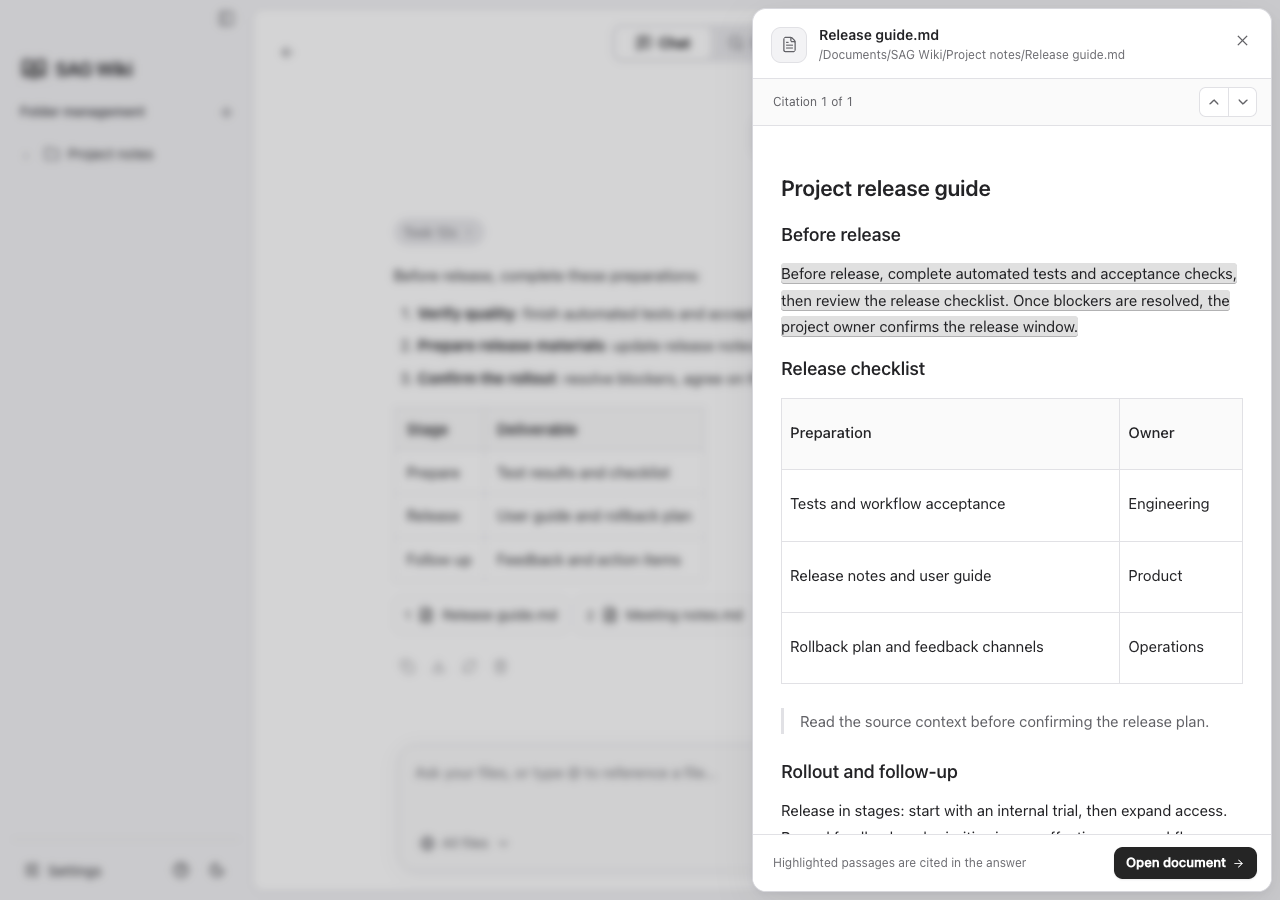
Citations help you verify the answer. Read the surrounding context when information is incomplete or contradictory. If you open the standalone document view, Back returns to the conversation.
Save as a note
After an answer finishes, click Save as note below it to store the answer as a Markdown file inside your knowledge base. The first save opens a panel: the file name comes from the question, and the default location is Documents / sag-wiki / notes, created and added to the library when missing. You can pick any other registered folder and check Remember this location. Turn off Ask for a location every time under Settings → Chat settings → Notes to save directly to the remembered folder. Hold Option (macOS) or Alt (Windows) while clicking Save to reopen the panel. You can also change the default folder in that settings group.
The top of the note records the question, time, model, scope, and for each citation the file path, file hash, byte and line range, and the passage as it was when saved. The body is the answer itself; only sources the prose actually cites are kept and renumbered in order of first use, followed by a Sources list. This metadata travels with the note. After copying or syncing it, the source paths must still resolve and the sources must be registered in the current knowledge base.
Verify citations
When you open a note, the editor shows its status above the text. Each citation is judged against the current file content:
| State | Meaning |
|---|---|
| Intact | The source file is unchanged |
| Moved | The file changed, but the cited passage appears whole at a new position; line numbers update automatically |
| Changed | The cited passage was edited; a word-level comparison of the saved and current text is available |
| Missing | The file was deleted, or no similar passage exists in it anymore |
| Unverified | The source is outside the knowledge base, unreadable, or the note's header could not be parsed |
States update whenever a source file is indexed or removed; Check again verifies immediately against the files on disk. Expanding the citation list lets you open the source, view the comparison or the saved text, and Ask again starts a new conversation with the note's question and scope. In the file list, notes carry a status dot, folders show how many notes need attention, and the filter can show only notes to review. Verification never calls a model.
Manage conversations
Open history from the conversation list on the Q&A home. Use its search button to search titles and answers. Inside a conversation, the top back arrow returns to the list and lets you start a new question without removing history. The back button is disabled during generation; stop generation first. The sidebar always displays folders.
History that has not yet been summarized includes previous questions, final answers and compact tool records. Each tool record keeps its name, status and the first 500 characters of its result. Reasoning, tool arguments and intermediate text are excluded from the next turn. The full record remains available in the interface.
The app checks the context budget before each model request, including during tool use. When content grows too large, the current answer model produces a summary covering the task, user constraints, confirmed facts and evidence, completed work, remaining questions and next steps. That summary replaces older content. The most recent exchange and complete tool call are retained when space permits.
Very long histories are summarized in batches and merged. The summary is saved with the conversation for later turns. Summarization makes additional model requests without counting as tool calls. A failed summary reports an error and preserves the original records. Full questions, answers, tool records and source passages remain stored locally and are not overwritten by the summary.
Configure an answer model
Enter your provider endpoint, model and API key in settings. Configure Jev as well for semantic retrieval. Jev finds evidence; the answer model composes the response.
Q&A settings in detail
Location: Settings → Q&A settings. Select the answer model you want to configure first.
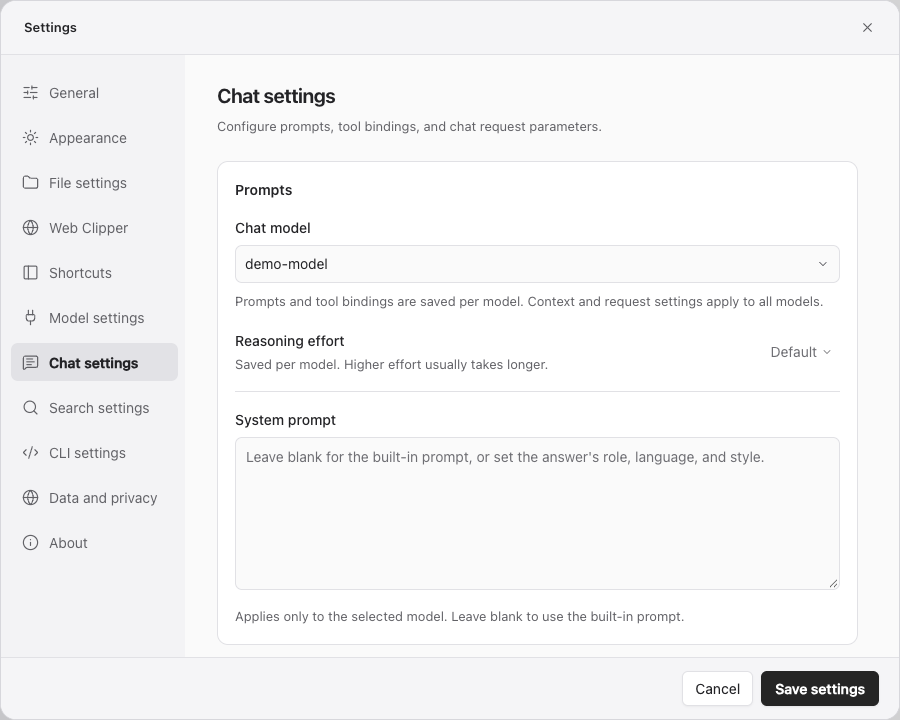
Settings saved per model
| Setting | Purpose | Notes |
|---|---|---|
| Reasoning effort | Choose a supported reasoning level | Options depend on the model and service. Higher effort usually takes longer; use Default when unsupported. |
| System prompt | Specify role, language, style or task requirements | Applies only to the selected model. Blank uses the built-in prompt; clear it to restore that prompt. |
| Built-in SAG tools | Allow local search, reading, matching, time and calculations | Disable the group or individual tools. Semantic search also requires Jev. |
| External MCP bindings | Select external servers and tools for the model | Connection details are shared; bindings and enabled tools are per model. |
Use the reasoning options actually shown by the UI. Some models offer Off, Low, Medium, High or Max. Unsupported means the specific model/service combination has no mapped reasoning parameter; it does not mean the model is unusable. Restore Default in that case.
A system prompt does not replace connection settings or add tool support to an incompatible model. See MCP and tool bindings for setup, testing and confirmations.
Request settings shared by all models
| Setting | Default / range | Effect |
|---|---|---|
| Tool calls per turn | 0 / 0–100 | The default, 0, means unlimited. Values from 1 to 100 cap the total SAG and external MCP calls during one Q&A turn. At that limit, the model answers from available results and identifies what remains unconfirmed. |
| Answer context budget (tokens) | 65536 / minimum 4096 | Controls input including the question, history, tool records and citations. No fixed maximum; set it within the model's actual capacity. History or material may be reduced to fit. |
| Request timeout | 120 seconds / 10–600 seconds | How long to wait for service requests. A short timeout can interrupt slow models; a long one delays failure feedback. |
The context budget is not an output-length setting; output length is controlled by the model service. Entering a value beyond the provider limit does not expand model capacity and may cause failure.
The tool-call limit differs from SAG2 expansion rounds. One search call can contain several retrieval rounds and Jev requests.
Save and verify
After saving, send a new question and check the selected model, tool calls and citations. When changing models, verify that model's prompt, reasoning and tools instead of assuming it inherits the previous model's configuration.