
Preferences
Set your start page, language and reading preferences.
Saving settings
Open Settings from the lower-left corner, choose a category, make your changes and select Save settings. Cancel discards ordinary unsaved changes. Language changes are previewed immediately and reverted on cancellation.
Testing a connection does not save its configuration. Removing a key, installing or removing a Skill, restoring directories and clearing data are separate actions that run immediately or request their own confirmation.
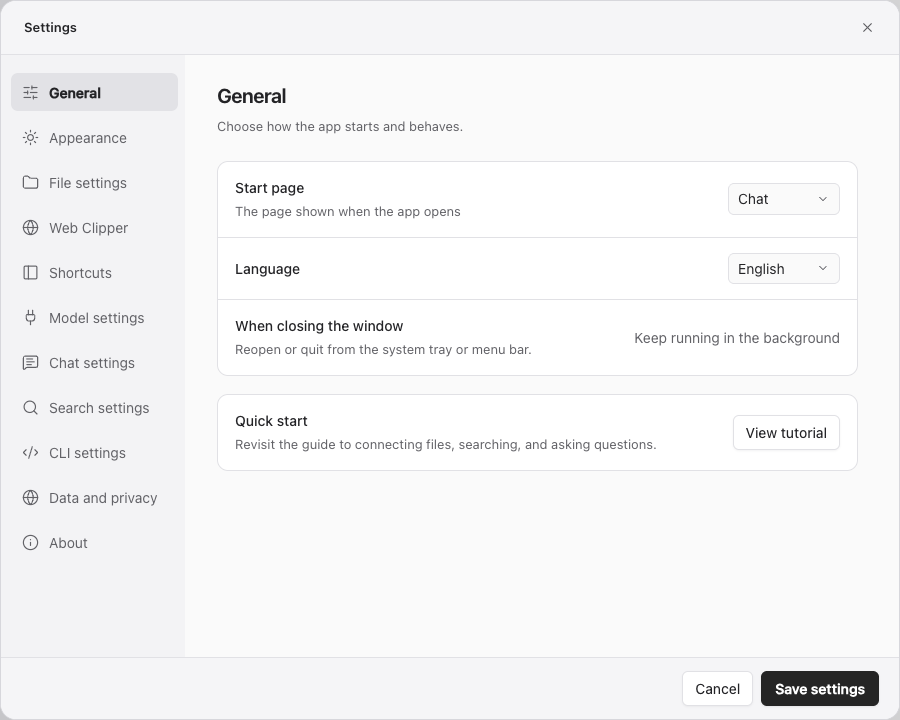
General
Location: Settings → General.
| Setting | Purpose | Default or choices |
|---|---|---|
| Start page | The first page shown when the app opens | Q&A by default; Q&A or Search |
| Interface language | Language of menus, controls and messages | Simplified Chinese by default; Simplified Chinese or English |
| After closing the window | Shows the window-close behavior | Continue running in the background |
| Quick start | Reopen the folder, search and Q&A tutorial | Select View tutorial |
Reopen the app from the system tray or menu bar. The desktop UI and local service are separate; closing the desktop does not stop the CLI service.
Appearance
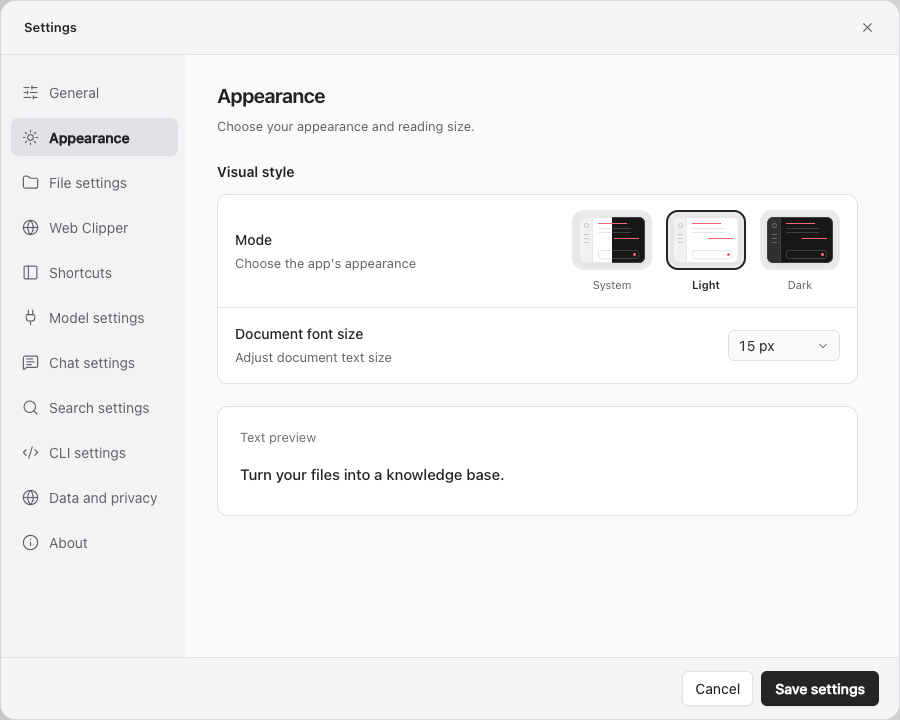
Location: Settings → Appearance.
| Setting | Purpose | Default or choices |
|---|---|---|
| Theme | Application color scheme | Light by default; Light, Dark or System |
| Document font size | Reading size, with a preview in settings | 15 px by default; 14, 15, 16 or 18 px |
Document font size changes the reading display, not the original document. System mode follows the operating system theme.
Keyboard shortcuts
Location: Settings → Shortcuts. This page lists the current shortcuts.
| Action | macOS | Windows |
|---|---|---|
| Search files | ⌘ K | Ctrl K |
| New conversation | ⌘ N | Ctrl N |
| Save document | ⌘ S | Ctrl S |
| Send question or search | Enter | Enter |
| New line in a question | Shift Enter | Shift Enter |
| Reference a file | Type @ | Type @ |
| Select, confirm or close a reference | ↑ / ↓, Enter, Esc | ↑ / ↓, Enter, Esc |
Help and documentation
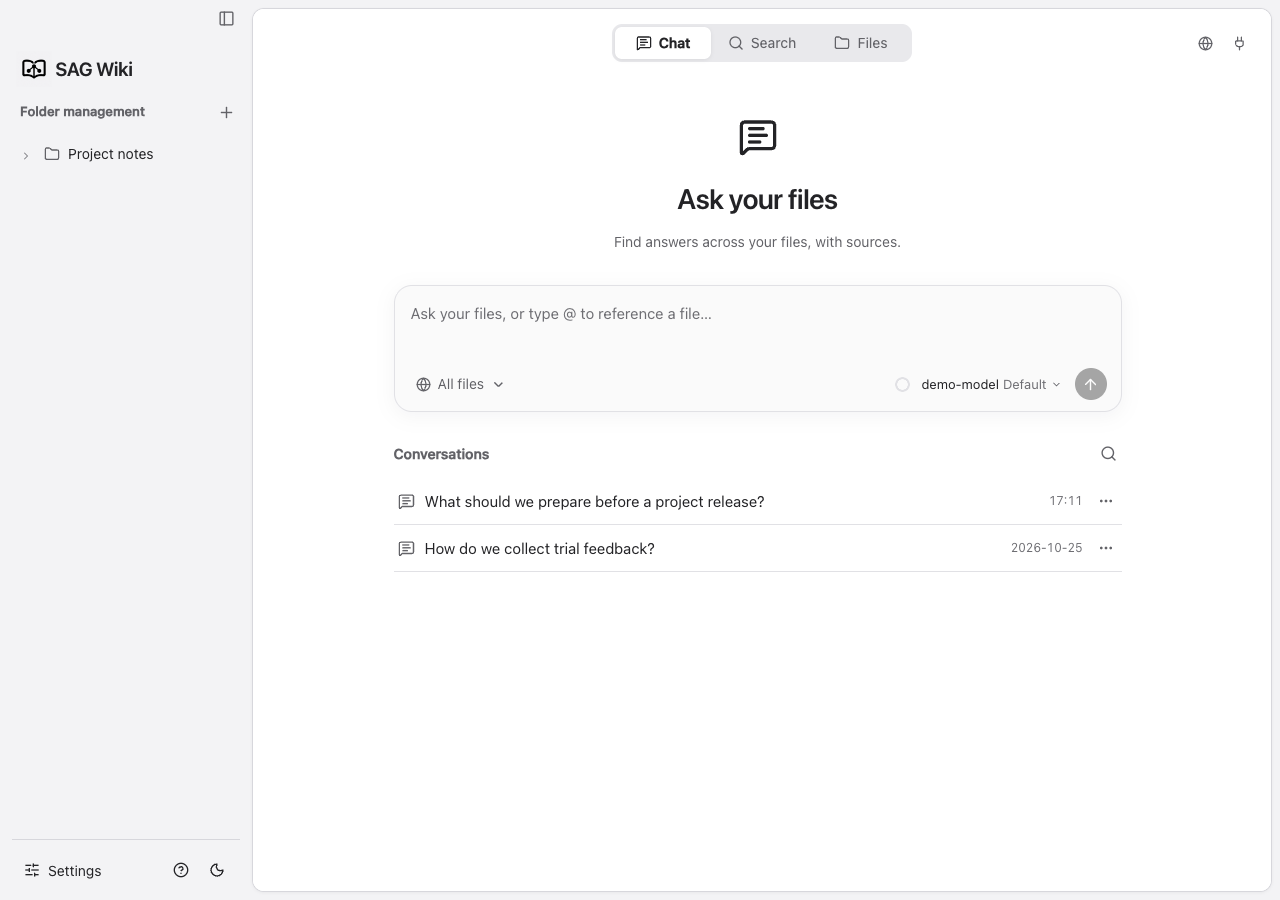
Click ? at the bottom of the sidebar to open the SAG Wiki documentation in your default browser. The app keeps the current conversation or document open. The button is also available when the sidebar is collapsed.
Find other settings
| Category | Documentation |
|---|---|
| File settings and folder indexing | Folders and indexing |
| Model settings | Model connections |
| Q&A settings | Q&A parameters |
| Search settings | Retrieval parameters |
| CLI settings | Agent integration |
| MCP and tool bindings | MCP and tools |
| Data and privacy | Storage and cleanup |
| About and software updates | Versions and updates |