
Folders
Control search scope, file types and ignore rules.
Add and index
Use the sidebar to add a directory in folder management. SAG Wiki indexes the selected file types while applying ignore rules. Later changes trigger incremental indexing.
Markdown, plain text, RTF, Word, PowerPoint, Excel, OpenDocument, CSV, EPUB and text-based PDFs are enabled by default. Built-in anydoc parses Office, RTF, tables, ebooks and PDFs locally without downloading components. Code and configuration files follow their type settings. Install Docling when needed for scanned PDFs and other formats.
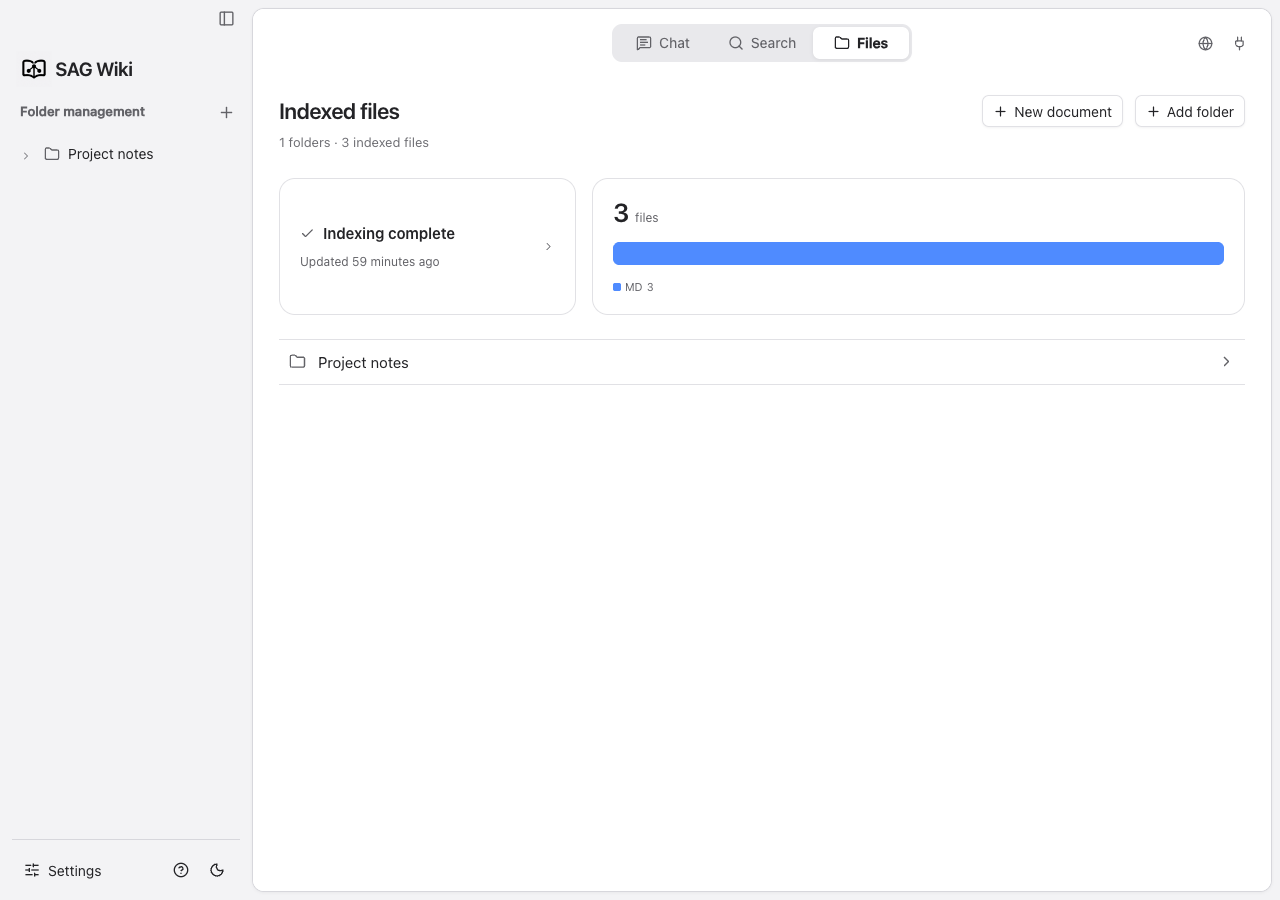
Limit your search scope
Add only the directories you need. Query scope is independent from the folder you are currently browsing. Browsing a folder does not change the search or Q&A scope automatically.
Ignore files
Both .gitignore and .sagignore apply in project roots and subfolders. .sagignore has higher priority.
node_modules/
dist/
.env
**/*.generated.md
Exclude sensitive files that you do not want retrieved or sent to model services. After changing rules, check index status to confirm coverage.
Remove and clear
Removing a directory from the knowledge base removes its registration and index while preserving original files. Removing a subfolder records an exclusion; adding the same subfolder restores it.
Clear files in settings clears the knowledge base index. Conversation records and file indexes are managed separately; read the action description before proceeding.
Check from the CLI
sag list
sag check
sag add --types md,txt,html,py,js,ts,tsx,json,yaml
--types selects text or built-in document formats for that directory, such as md,docx,pdf,xlsx. Wait for indexing to finish before searching.
File settings in detail
Location: Settings → File settings. Global settings apply to folders without their own overrides. Save file-type, exclusion or chunking changes first, then check that indexing completes.
File types
| Option | Contents | Default |
|---|---|---|
| Markdown | .md, .markdown | On |
| Text and documents | .txt, .rtf, .docx, .pptx, .xlsx, .odt, .epub, .pdf | On |
| Code | .py, .js, .ts, .rs, .html, .css | Off |
| Configuration | .json, .yaml, .toml, .xml, .ini | Off |
Disabling a type removes it from indexing and retrieval while preserving original files and browsing. For code repositories, enable code and configuration or select extensions using CLI --types.
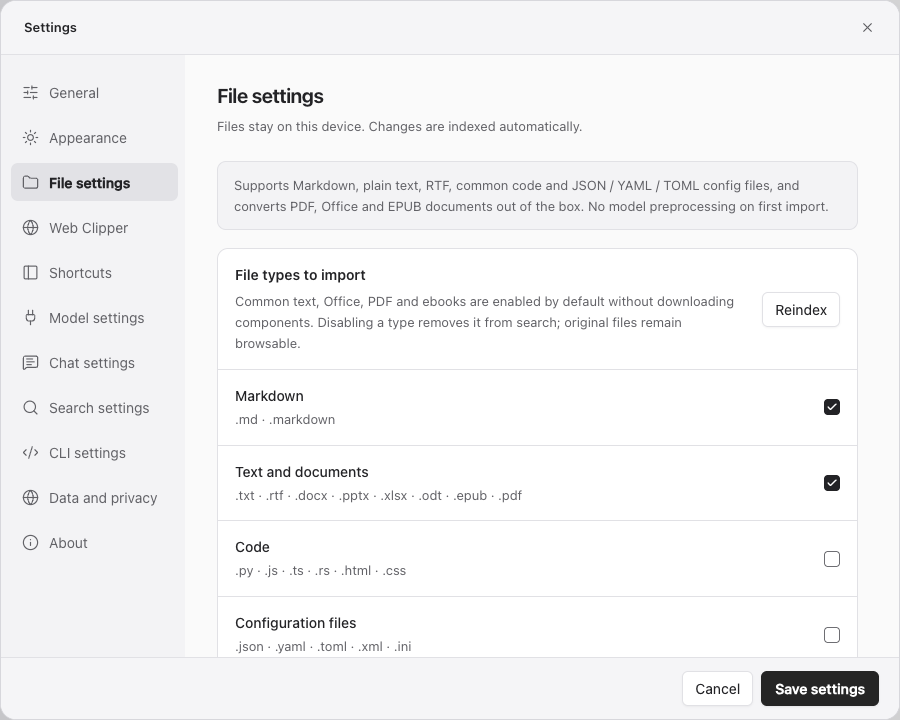
Other formats and conversion
Text and documents is one setting, enabled by default. TXT and RST are read directly; the following documents use built-in anydoc first: Word (.doc, .docx, .docm), PowerPoint (.ppt, .pps, .pot, .pptx, .pptm, .ppsx, .ppsm), Excel (.xls, .xlsx, .xlsm, .xlsb), OpenDocument (.odt, .ods, .odp), RTF, CSV, EPUB and text-based PDFs.
Other formats lists scanned PDFs, images, audio, video, email, Apple iWork and some document templates. Text-based PDFs continue to use the built-in parser. Choose Select and pick the formats you need. If support is missing, choose Install and apply, confirm installation, then apply the selection. Document and media components are installed separately according to the selected formats. Scanning files never downloads components automatically.
When a PDF contains pages requiring OCR, or the built-in parser explicitly reports unsupported content, an installed Docling handles the file. If Docling is absent, indexing details explain the required action; install it and reindex. Damaged and encrypted documents report parsing errors.
- Select all / Clear selection selects or clears all conversion formats. An empty selection disables additional formats without affecting enabled built-in documents.
- Apply applies the format selection; global settings still need to be saved.
- Conversion workers defaults to 1, allows 1–16, is shared across folders and takes effect on the next indexing task. Actual concurrency is also limited by the shared resource budget. Previously saved values are preserved.
- Uninstall related components removes SAG-managed document and media components, runtimes, recognition models, FFmpeg and download caches. Original files, converted files and existing indexes remain; built-in document parsing stays available.
Native text is indexed first, built-in documents and enabled additional formats are parsed in parallel, and finished results are then indexed. Already indexed content can be searched before every conversion finishes.
Converted files go under .sag-converted/ in the added root, preserving subfolders:
material/report.pdf
→ .sag-converted/material/report.pdf.md
macOS hides dot-prefixed directories by default. Built-in parsing does not upload files. Docling may require additional recognition models for scans, audio and video; first use includes model preparation. After a parser upgrade, reindexing updates built-in conversion results that have not been edited manually.
Watch file changes
Enabled by default. Additions, edits, deletions and renames trigger indexing updates under the configured rules. When disabled, manually reindex as needed rather than assuming the index is current. Enabling it again triggers a file check.
Watching runs in the shared background service. Closing the desktop window does not stop that service.
Show hidden folders
Off by default. It affects only the right-side file list; the left sidebar still hides these folders. It does not control indexing, which follows file-type and exclusion rules.
Index workers
Defaults to 8, allows 1–64 and applies to the next indexing task. Changing only worker count does not rebuild existing indexes. Lower it for large files if resource use is too high.
Excluded directory names
Enter one name per line. Defaults include .git, node_modules, dist, target, .venv, venv and __pycache__. Excluded directories remain browsable but are not indexed.
Use .sagignore for more precise path or file patterns, directory rules and ! negation. These combine with global exclusions and type selections to determine coverage.
Reindex and history
Global Reindex checks all registered directories using saved types and exclusions, updating changed indexes. Save relevant changes before running it.
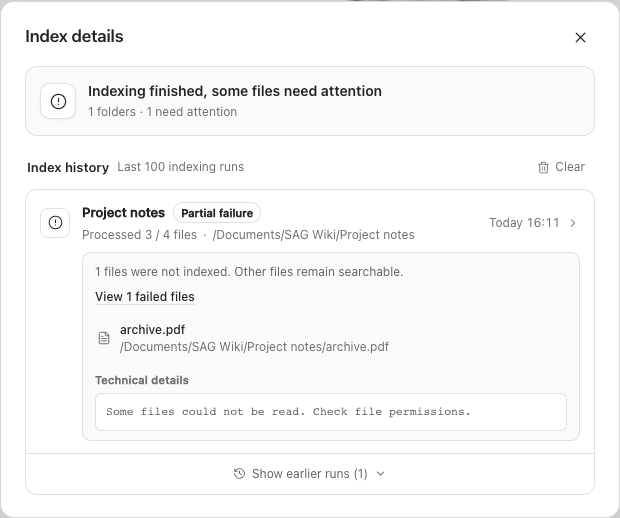
Open Index history → View to inspect progress, completion and failures. Check error paths and messages rather than assuming a total file count means everything succeeded.
The bottom of the sidebar shows the current stage, progress and partial failures. Longer text wraps while keeping the close button available. Click the status to inspect failed files.
After you dismiss a failure notice, the app remembers the current failure details and keeps that notice hidden when you reopen the interface. New indexing runs still show progress, and changed failure details trigger a new notice. You can still inspect dismissed failures through the index status card on the Files page or Index history → View.
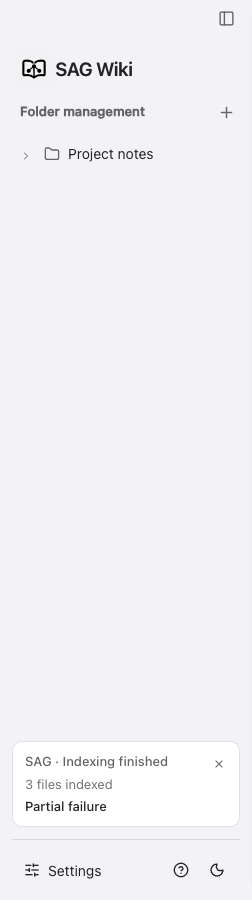
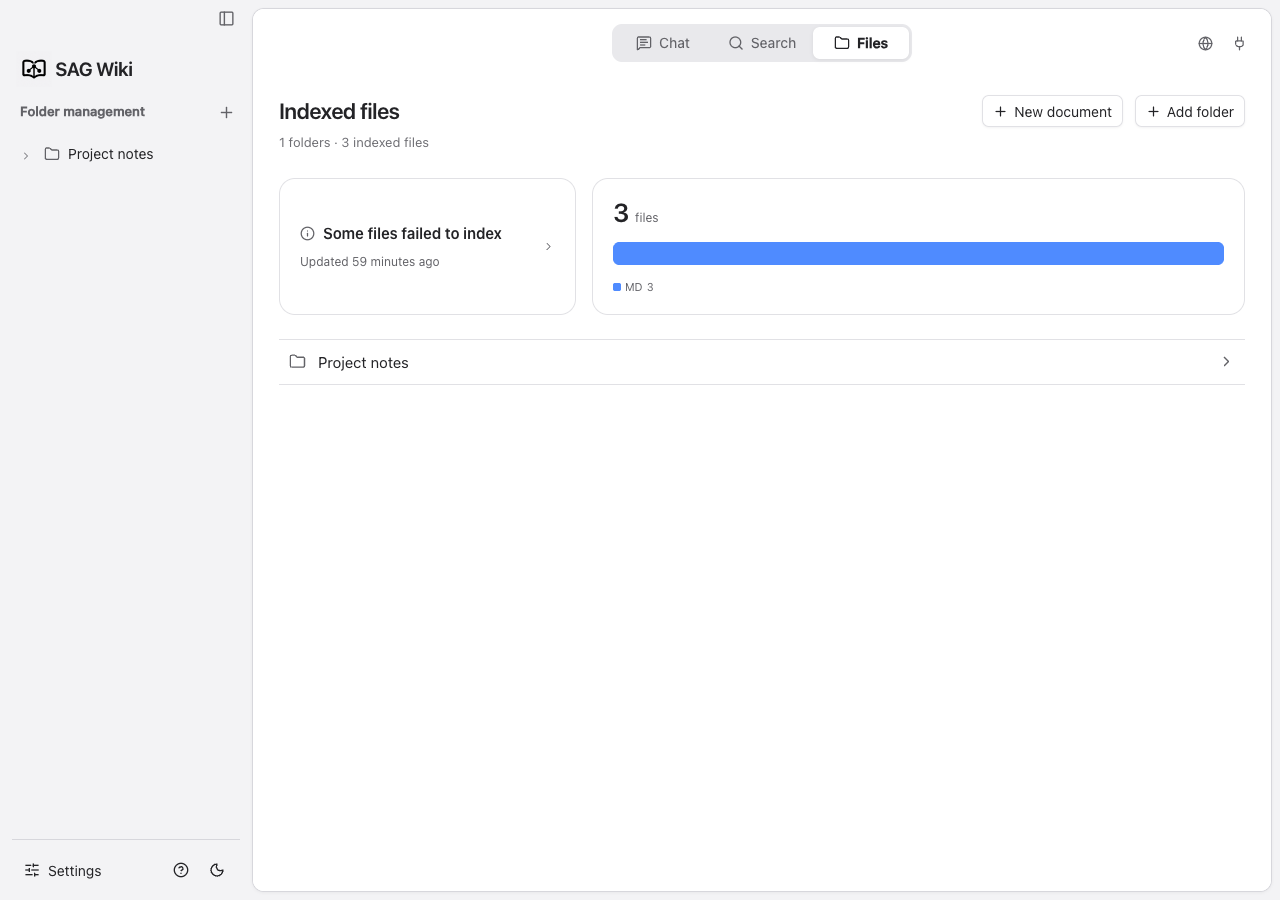
Removed files and folders → Restore adds an excluded path back and starts indexing. Restore only content you want searchable again.
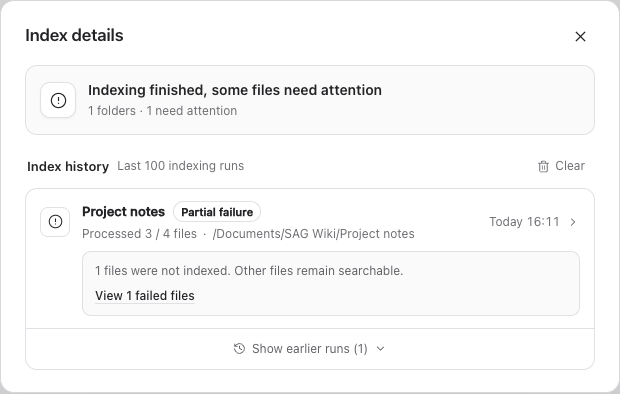
Recent indexing and failures
Index details shows the latest record for each folder. Expand older records to inspect earlier runs. A failed run includes a readable explanation and file details; use the file entry to locate the affected source. Clearing history removes records, not the existing index.
Indexing details show the Text indexing → File conversion → Index converted files stages, with progress for the current stage. Already indexed content remains searchable. Select Pause indexing to pause after in-progress files finish, or Resume indexing to continue.
Per-folder index settings
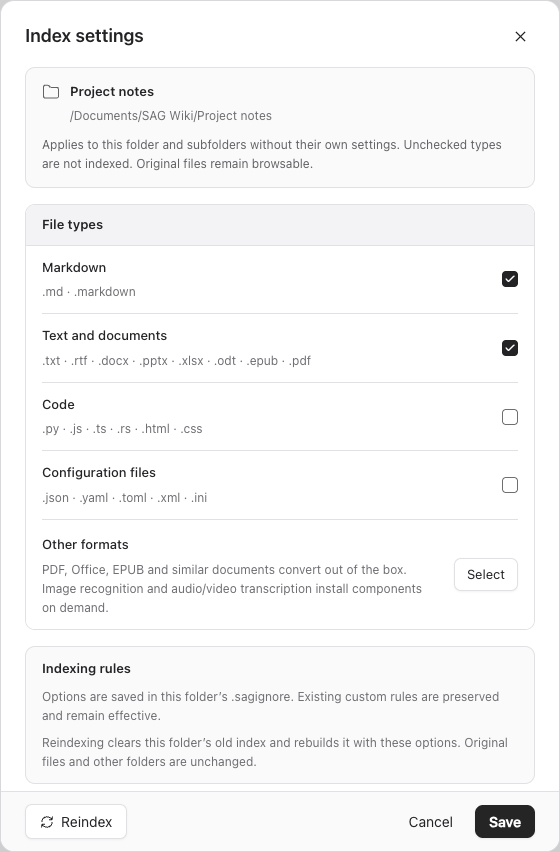
Open Index settings from a folder menu to select native types and conversion formats for that folder. Settings apply to the directory and subfolders without their own configuration; child overrides take precedence.
Options are stored in the managed section of that folder's .sagignore. Existing handwritten rules are preserved.
- Save stores options and updates the index under the new rules.
- Reindex clears that folder's old index and rebuilds it. Other folders and original files are preserved.
- Cancel discards unsaved option changes.
Per-folder Reindex rebuilds that directory; global Reindex checks and updates changed content under saved rules. Their scope and behavior differ.
Web clipping folder
Web Clipper saves independently. To index its output, choose Add clipping folder in Web Clipper settings and select the actual save folder. Existing watch and indexing rules then apply.
First-time initialization creates Documents/sag-wiki/clippings and adds Documents/sag-wiki as the default managed folder. Existing libraries and removed folders are not added again on restart.